Why create and style something twice if you can do it once? This is one of the guiding principles behind programming. The Drupal UI Patterns module brings component-driven development to Drupal. This means that you create a component once and then reuse it anywhere on your site. The goal is to speed up your development, and bring design consistency to elements that you display in different ways.
In this tutorial you'll learn how to work with the UI Patterns module to create your first pattern.
Before We Start
Since UI patterns is related to Drupal front-end development, you should know the basics of Drupal theming. UI patterns need to be placed in a custom module or theme – so you have to know how to create one.
Let's begin by downloading and enabling the relevant modules:
UI Patterns – Also enable the UI Patterns Library module which is included.
Display Suite – This allows us to display content and other entities using UI Pattern layouts.
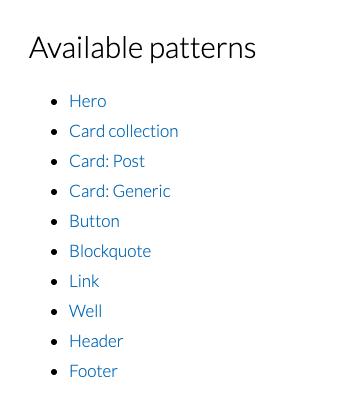
The /patterns page displays a list of all UI Patterns
Defining UI Patterns
UI Patterns are like plugins in Drupal. They can be defined from within custom modules or themes.
Start by defining a custom theme (I've named it oldie). Inside the theme, create a directory named patterns with the following files:
## File: oldie/patterns/blockquote/blockquote.patterns.yml
blockquote:
  label: 'Blockquote'
  description: A block of text quoted from an external source.
  # variants: ...
  fields:
    content:
      type: text
      label: Content
      description: The body of the quote.
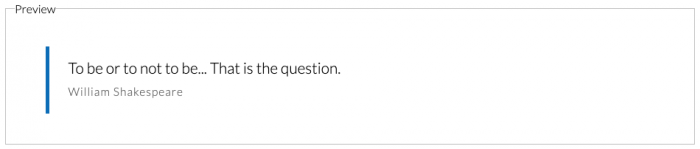
      preview: 'To be or to not to be... That is the question.'
    attribution:
      type: text
      label: Attribution
      description: Reference to the original author (optional).
      preview: 'William Shakespeare'
    cite:
      type: uri
      label: Citation
      description: URL where the original text can be found (optional).
      preview: 'https://example.com/'
  libraries:
    -
      blockquote:
        css:
          component:
            css/blockquote.css: {}
Important: Any changes to this file will only be detected after you clear the cache.
Now, let's take a look at the fields which merit an explanation:
Fields
This contains information about variables that the pattern deals with. Each field has the following properties:
label: A human-readable name.
description: A description.
type: Expected data type (only used for documentation at the time of writing this article). This can be one of text|numeric|uri|boolean|collection|mixed.
preview: A string or a renderable array used to generate previews.
Libraries
The libraries key defines CSS / JS libraries associated with the UI pattern. The format is similar to any Drupal library definitions. For the block quote pattern, we didn't need any JavaScript, hence the libraries section doesn't define any JS. However, for components like sliders and carousels, it is a good idea to include JS libraries in the pattern themselves so that they can be loaded whenever the pattern is present on a page.
Variants
Variants allow us to create 2 or more versions of the same pattern. For example, if your website has 2 kinds of quotes – default and colorful, you can define two variants as follows:
It is a good idea to start the twig file without any variables and adding the variables later.
Patterns in Action!
For Drupal to detect the pattern and all the changes, you need to clear cache. With the UI Patterns Library module, you can now see all your patterns at example.com/patterns.
Display Suite with UI Patterns
It is possible to use UI Patterns to render nodes, paragraphs or any other entity type as a UI Pattern.
Enable the UI Patterns Display Suite module
Visit the Manage Display page for the entity you wish to display using a UI Pattern.
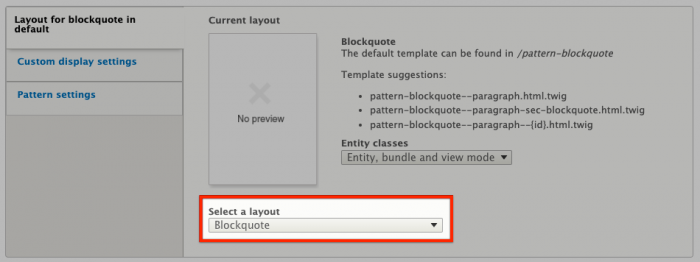
At the bottom, choose the UI Pattern from the Select a layout dropdown.
Save the configuration and the fields interface will allow you to map the fields of your entity with the respective UI pattern fields! Once the mapping is done, your entity will now be displayed as using UI Patterns.
On the Manage Display page for an entity, use a UI Pattern as a layout
Views with UI Patterns
My favorite use of UI Patterns is with views – it is possible to display rows of a view using a UI Pattern!
Enable the UI Patterns Views module.
Edit the view where you want to use UI patterns.
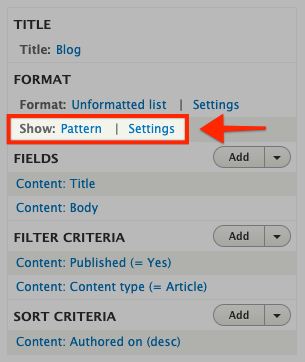
Choose the row display style to be Pattern.
Now, in the row display settings, you should be able to choose the UI Pattern that you want to use to display and you should be able to map views fields to the appropriate pattern fields.
Save the view and visit the views page on your site. You will see that each row is rendered as a UI Pattern.
Display views rows as UI Patterns
Note: Views cannot display pattern previews on the views admin page. You might see errors saying “Pattern Views row plugin does not support preview” which is normal.
Other ways to use UI Patterns
With the UI Patterns Field Group module, you can display field groups as UI Patterns.
With the Twig Tweak module, you can call UI Patterns from .twig files using the Twig function pattern(pattern-id, variables, variant).
With Drupal's render API using #type => pattern in renderable arrays.